
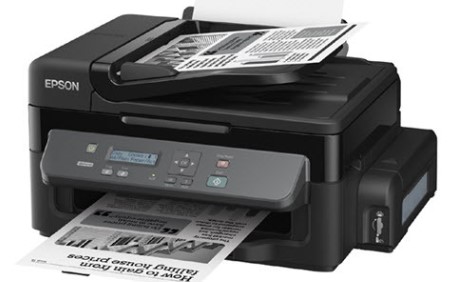
Epson M201 Resetter Tool: A Step-by-Step Guide to Clearing the “Service Required” Error
Epson M201 Resetter Download, Like other Epson printers, the Epson M201 has a built-in counter that tracks waste ink absorption. When this counter fills, the printer locks up and shows a “Service Required” error to prevent ink leaks. To get it running again, you need to use a resetter tool, also known as an Adjustment Program, to clear this counter.
This guide explains how to properly use the Epson M201 Resetter Tool to fix the error.
What is the Epson M201 Resetter Tool?
The Epson M201 Resetter Tool (usually called the Adjustment Program) is specialized software that communicates directly with the printer’s firmware . Its main job is to reset the waste ink pad counter to zero. This effectively clears the “Service Required” error and allows you to use the printer again . It’s important to know that this reset is a digital fix—it doesn’t physically clean the printer’s waste ink pads.
The official Epson service manual for this printer series also refers to this software and recommends its use for specific maintenance tasks . For the M201 model, this software is often included in packages designed for the M100, M105, M200, and M205 series as well .
A Step-by-Step Guide to Using the Resetter Tool
Here is a standard procedure for using the tool. You can find similar guides and software from various technical support websites.
Epson M201 Resetter Download
Step 1: Prepare Your Printer and Computer
- Connect the printer to your computer using a USB cable, as the tool doesn’t work over Wi-Fi .
- Turn the printer on.
- Clear the print queue on your computer to ensure no pending jobs are interfering with the process .
- Temporarily disable your antivirus and Windows Defender, as they may mistakenly flag the reset tool as a threat .
Step 2: Run the Adjustment Program
- Download and run the
Resetter.exefile. - On the main screen, click the “Select” button .
- In the window that appears, choose the “Model Name” (like M201 or M105) and the correct “Port” (your USB connection), then click “OK” .
Step 3: Reset the Waste Ink Counter
- Click the “Particular adjustment mode” button .
- From the list, choose “Waste ink pad counter” and click “OK” .
- In the new window, click “Check”. This will read the current counter value, often shown as a percentage .
- After the check is complete, select the checkbox next to the counter, and click the “Initialization” button to reset it .
- Wait for the program to finish, then turn off the printer and turn it back on .
Once your printer restarts, the error should be cleared.
Important Final Considerations
- Physical vs. Digital Reset: This process only resets the digital counter. The physical waste ink pads are still saturated. If they overflow, it could cause serious damage to your printer. For a long-term fix, you might want to have the ink pads cleaned or replaced .
- It’s For Technical Use: This is a maintenance tool for technicians. You should know that using third-party software to modify your printer’s firmware might void its warranty.
- Unlimited Use: Many of these tools are designed to be used an unlimited number of times on the same printer model, so you can buy it once and use it whenever needed .
By following this guide, you should be able to clear the “Service Required” error on your Epson M201 printer and get it back to work.
Disclaimer: This guide is for educational purposes only. Using third-party reset tools may void your printer’s warranty. Always follow manufacturer guidelines and use at your own risk.
মসজিদ এর ডিজিটাল ঘড়ি কিনতে এখানে ক্রিক করুন

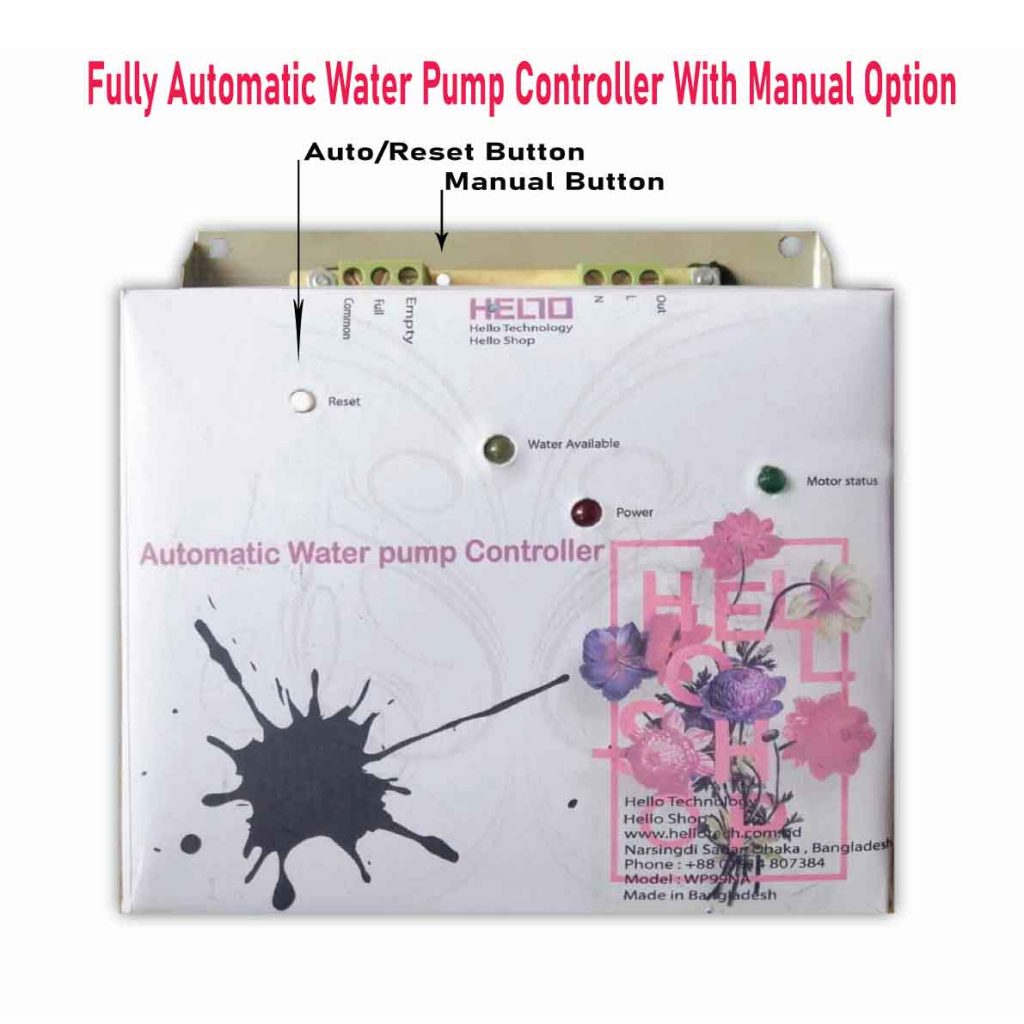
অটোমেটিক ওয়াটার পাম্প কন্টোলার কিনতে এখানে ক্লিক করুন
আমারা দিচ্ছি নিজেদের কারখানায় উৎপাদিত, উৎকৃষ্ট মালামাল দ্বার তৈরি গ্যারান্টি সহ সকল ধরনের ডিজিটাল ঘড়ি, এল ই ডি টিভি বিলবোর্ড ডিসপ্লে, মেসেজ ডিসপ্লে।
Outdoor Digital Clock install Jessore Cantonment
Outdoor Digital Clock install Dhaka Cantonment
250 inch LED Tv Billboard install kumarpara, Rajshahi
Epson printer Red light problem Full VIdeo Link With All Error Solve : Link
আমাদের কাছে যে যে মডেলের রিসেট টোলস আছে
L100
L110 L210 L300 L350 L355
L130 L220 L310 L360 L365
Epson L380 L383 L385 L485 (ECC) + Keygen
L380
L800
L805
L1210-L1211-L1216-L1250-L1251-L1256-L3210-L3211-L3216-L3250-L3251-L3256-L5290-L5296
L1218 L1258 L1259 L3218 L3219 L3251 L3253 L3255 L3256 L3258 L3266 L3267 L3268 L3269 L5298
L1300
L1800
L3110
Epson L565 (ESP-EPIL)
L1210 L3210 L3250 L3251 L3260 L5290
Reset Epson L3118 L3119
Epson L3050 L3070 (ERO)
Epson L3160 (ECC)
Epson L3550 L3556 L5590 (ESP)
Reset_Epson_L3110
Epson L455 (ECC)
Epson L565 (ESP-EPIL)
Epson L655 (ESP)
Epson L11050 Adjustment Program
Epson L14150 L14158 Adjustment Program
Epson M105 M205 (EAI-LATIN)
Epson_L3100_L3101_L3110_L3150__EPIL____Keygen
L550-L555
Reset_Epson_L4260_L4261_L4267
Epson ET-4550
Reset_Epson_L5190
L6160-L6170-L6190
L6260_L6270_L6290
M200,
M201
M205
Reset EPSON L8050 (ESP)
Reset Epson L15150 L11160 WF-7830
RESET EPSON L15160_L15180
Reset Epson M1140 M1170 M1180 M2140 M2170 M3140 M3170 M3180
Epson M100 M101 M105 (ECC)
Epson M1140 1170 1180 2140 2170 3140 3170 3180
Reset_Epson_M1100_M1120(V10)
Epson PX730DW Adjustment Program
R270 by OrTHoTaMiNe
Reset Epson 1500W
Reset_Epson_WF3720
TX300F