
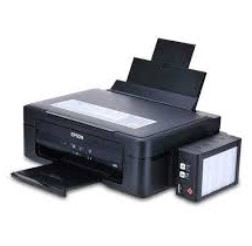
Epson L210 Printer Resetter Tool: The Ultimate Guide to Resetting Waste Ink Counter
Introduction
Epson L210 Printer Resetter Tool
If your Epson L210 printer suddenly stops working and displays an error like “Service required: A printer’s ink pad is at the end of its service life”, don’t panic! This common issue occurs when the printer’s waste ink counter reaches its limit. Fortunately, you can fix it using an Epson L210 resetter tool.
In this comprehensive guide, we’ll explain:
✔ What is the Epson L210 resetter tool?
✔ Why does the waste ink counter need resetting?
✔ Step-by-step instructions to reset your printer
✔ Where to safely download the reset tool
✔ Alternative solutions if resetting doesn’t work
What is the Epson L210 Resetter Tool?
The Epson L210 resetter tool (also called WIC Reset Utility or Adjustment Program) is a special software that resets the printer’s internal waste ink counter.
Why is it Needed?
- Epson printers have a built-in counter that tracks ink absorbed by the waste ink pad (used during cleaning cycles)
- When the counter reaches its limit (usually after 1-2 years of use), the printer locks itself
- The reset tool clears this counter, allowing you to continue printing
How the Epson L210 Resetter Works
The software connects to your printer via USB and:
- Reads the current waste ink counter value
- Resets the counter to zero
- Unlocks the printer
⚠ Important Notes Before Proceeding:
- This does not physically clean the waste ink pad
- If the pad is completely full, you should replace it to avoid leaks
- Using third-party tools may void your warranty
Step-by-Step Reset Guide
What You’ll Need:
✅ Epson L210 printer (connected via USB)
✅ Windows PC (software usually doesn’t work on Mac)
✅ Resetter tool (download from trusted source)
Reset Process:
- Download the resetter tool (search for “Epson L210 Adjustment Program”)
- Turn on your printer and connect via USB
- Run the software as Administrator (Right-click → Run as Admin)
- Select “Particular Adjustment Mode”
- Choose “Waste Ink Pad Counter”
- Click “Reset” and wait for completion
- Restart your printer
The error message should now disappear, and your printer will work normally again.
Where to Download the Resetter Tool?
⚠ Warning: Many fake/malicious reset tools exist online. Only download from:
- Official Epson service centers (best option)
- Reputable tech forums (e.g., TechPapa, PrinterKnowledge)
- Trusted software sites (e.g., WIC Reset Utility)
(We can’t provide direct links due to copyright restrictions, but search for “Epson L210 Adjustment Program” or “WIC Reset Epson L210”)
Alternative Solutions
1. Replace the Waste Ink Pad
If resetting doesn’t work:
- Open the printer and locate the waste ink pad
- Replace it with a new one (or clean if reusable)
- Reset the counter again
2. Visit an Epson Service Center
For warranty-covered printers, professional service is recommended.
Preventive Maintenance Tips
- Clean print heads manually to reduce waste ink accumulation
- Use genuine Epson ink for better performance
- Monitor ink levels regularly
Conclusion
The Epson L210 resetter tool is an effective solution for the “ink pad full” error, but remember:
- It’s a temporary fix – eventually replace the waste pad
- Always use trusted software to avoid malware
- For long-term use, consider professional maintenance
By following this guide, you can extend your printer’s lifespan and save on repair costs.
Did this guide help you? Share it with other Epson L210 users! 🖨️🔧
Keywords for SEO:
- Epson L210 resetter tool free download
- How to reset Epson L210 waste ink counter
- Epson L210 adjustment program
- WIC reset Epson L210
- Epson L210 service required fix
- Epson printer reset software
- Epson L210 ink pad replacement
- Epson L210 maintenance reset
- Epson waste ink pad reset
- Epson L210 error reset
মসজিদ এর ডিজিটাল ঘড়ি কিনতে এখানে ক্রিক করুন

Epson printer Red light problem Full VIdeo Link With All Error Solve : Link
আমাদের কাছে যে যে মডেলের রিসেট টোলস আছে
L100
L110 L210 L300 L350 L355
L130 L220 L310 L360 L365
Epson L380 L383 L385 L485 (ECC) + Keygen
L380
L800
L805
L1210-L1211-L1216-L1250-L1251-L1256-L3210-L3211-L3216-L3250-L3251-L3256-L5290-L5296
L1218 L1258 L1259 L3218 L3219 L3251 L3253 L3255 L3256 L3258 L3266 L3267 L3268 L3269 L5298
L1300
L1800
L3110
Epson L565 (ESP-EPIL)
L1210 L3210 L3250 L3251 L3260 L5290
Reset Epson L3118 L3119
Epson L3050 L3070 (ERO)
Epson L3160 (ECC)
Epson L3550 L3556 L5590 (ESP)
Reset_Epson_L3110
Epson L455 (ECC)
Epson L565 (ESP-EPIL)
Epson L655 (ESP)
Epson L11050 Adjustment Program
Epson L14150 L14158 Adjustment Program
Epson M105 M205 (EAI-LATIN)
Epson_L3100_L3101_L3110_L3150__EPIL____Keygen
L550-L555
Reset_Epson_L4260_L4261_L4267
Epson ET-4550
Reset_Epson_L5190
L6160-L6170-L6190
L6260_L6270_L6290
Reset EPSON L8050 (ESP)
Reset Epson L15150 L11160 WF-7830
RESET EPSON L15160_L15180
Reset Epson M1140 M1170 M1180 M2140 M2170 M3140 M3170 M3180
Epson M100 M101 M105 (ECC)
Epson M1140 1170 1180 2140 2170 3140 3170 3180
Reset_Epson_M1100_M1120(V10)
Epson PX730DW Adjustment Program
R270 by OrTHoTaMiNe
Reset Epson 1500W
Reset_Epson_WF3720
TX300F