
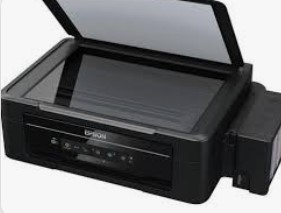
Epson L355 Resetter Tool: The Ultimate Guide to Waste Ink Counter Reset
Introduction
Epson L355 Resetter Tool , The Epson L355 is a compact, all-in-one EcoTank printer that has become a favorite among home users and small businesses for its wireless capabilities and cost-effective printing. Despite its advanced features, the L355 shares a common characteristic with all Epson printers – a built-in waste ink counter that monitors ink absorption during maintenance cycles. When this counter reaches its maximum capacity, the printer displays a “Service Required” error and stops functioning until properly reset.
This comprehensive guide explores the Epson L355 Resetter Tool, explaining how it works and providing detailed step-by-step instructions for successful waste ink counter resetting.
Understanding Epson L355 Waste Ink Management System
The Science Behind Waste Ink Collection
The Epson L355 features an intelligent waste ink management system designed to:
- Capture excess ink during print head cleaning and maintenance cycles
- Contain residual ink from printer initialization and priming processes
- Prevent internal corrosion and component damage
- Maintain consistent print quality through proper ink flow management
- Protect sensitive electronics from ink contamination
The Service Error Mechanism
The printer’s firmware employs a sophisticated software counter that tracks ink absorption. When this counter reaches its programmed limit (typically 85-100%), the system automatically:
- Displays “Service Required” error message
- Ceases all printing and scanning operations
- Activates warning indicators and error lights
- Locks the printer system until reset is performed
Epson L355 Resetter Tool: Comprehensive Overview
What is the Resetter Tool?
The Epson L355 Resetter Tool (official designation: Epson Adjustment Program WIC Reset) is specialized software that:
- Establishes direct firmware communication with the printer
- Accesses protected memory sectors containing counter data
- Reads current waste ink counter values and status
- Resets counter values to factory default settings
- Clears error history from system registry
- Restores full operational capability without hardware intervention
Technical Operation Sequence
- Secure Handshake: Establishes encrypted USB connection
- Model Verification: Confirms L355 compatibility
- Data Retrieval: Reads current waste ink counter status
- Reset Implementation: Clears counters and error flags
- Validation Protocol: Confirms successful reset completion
Complete Step-by-Step Reset Procedure
Pre-Reset Preparation Checklist
- Windows 7/8/10/11 computer with available USB ports
- High-quality USB 2.0 cable for reliable data transfer
- Authentic resetter software from verified sources
- Uninterrupted power supply with surge protection
- A4 paper properly loaded in main input tray
Detailed Reset Operation
Step 1: Service Mode Activation
- Ensure printer is powered on and in ready state
- Load adequate paper into all available trays
- Press and hold the “Cancel” button for 5-8 seconds
- Wait for specific light pattern indicating service mode
- Observe control panel indicators for service mode confirmation
Step 2: Software Configuration
- Download genuine software from trusted repositories
- Establish USB connection between printer and computer
- Launch application with administrator rights
- Select “L355 Series” from model selection menu
- Identify correct USB communication port
Step 3: Reset Execution Process
- Navigate to “Particular Adjustment Mode”
- Choose “Waste Ink Pad Counter” option
- Click “Read” to check current counter percentage
- Analyze the reading (typically 90-100% when reset required)
- Click “Initialize” or “Reset” to clear counter
- Await success confirmation dialog box
Step 4: System Finalization
- Properly close the software application
- Complete power cycle – turn printer completely off
- Wait 45-60 seconds for full system reset
- Restart printer using power button
- Perform comprehensive test print to verify functionality
Essential Safety Protocols & Best Practices
Critical Safety Measures
- ✅ Use only authorized software from verified sources
- ✅ Create system backup before initiating process
- ✅ Follow procedural guidelines meticulously
- ❌ Avoid unnecessary reset frequency
- ❌ Never interrupt USB connection during operation
Physical Maintenance Recommendations
- Quarterly visual inspection of waste ink absorption system
- Professional external waste ink bottle installation advised
- Scheduled internal cleaning every 6 months
- Timely replacement of saturated absorption pads
Preventive Optimization Strategies
- Optimize cleaning cycles based on actual printing needs
- Maintain regular printing schedule for nozzle health
- Implement automated maintenance during off-peak hours
- Use genuine Epson consumables for maximum performance
Advanced Troubleshooting Guide
Connection Issues Resolution
- Test USB cable integrity with other devices
- Verify correct service mode activation sequence
- Ensure software version matches printer generation
- Experiment with different USB host controllers
Reset Procedure Failures
- Confirm exact printer model and sub-model compatibility
- Check for available firmware updates
- Validate complete administrative privileges
- Verify system architecture compatibility
Persistent Error Conditions
- Execute complete reset procedure repetition
- Physical inspection of waste ink containment system
- Professional diagnostic tool implementation
- Epson authorized service center consultation
Expert Frequently Asked Questions
Q: What is the typical reset interval for L355?
A: Approximately 12-18 months with normal usage, or after printing 10,000-15,000 pages.
Q: Is the reset process completely safe for my printer?
A: Absolutely, when performed correctly using genuine software and following proper methodology.
Q: How does resetting affect my warranty status?
A: May impact remaining manufacturer warranty. Always verify warranty coverage before proceeding.
Q: Can I extend time between required resets?
A: Yes, through optimized usage patterns and regular physical maintenance routines.
Q: What indicates need for physical maintenance versus software reset?
A: Rapid error recurrence after reset suggests physical pad replacement requirement.
Professional Maintenance Management
Monitoring & Analytics Implementation
- Deploy automated print volume tracking
- Maintain detailed maintenance cycle logs
- Record historical reset data and counter values
- Analyze ink consumption patterns for optimization
Long-term Preservation Strategies
- Develop comprehensive maintenance calendar
- Schedule firmware updates during planned downtime
- Establish preventative cleaning protocols
- Implement proper storage procedures for extended non-use
Performance Optimization Techniques
- Maintain consistent printing schedule for mechanical health
- Utilize appropriate media types for specific applications
- Configure optimal quality settings for each task type
- Plan maintenance activities during predictable low-usage periods
Cost-Benefit Analysis
Financial Advantages
- Eliminates expensive service center visits (saving $60-$120 per service)
- Extends printer lifespan by 2-4 years on average
- Reduces operational downtime significantly
- Minimizes total cost of ownership
Environmental Benefits
- Reduces electronic waste generation
- Extends product lifecycle substantially
- Conserves manufacturing resources
- Supports sustainable printing practices
Conclusion
The Epson L355 Resetter Tool provides an essential maintenance solution that empowers users to maintain continuous printer operation and maximize their investment return. By thoroughly understanding the waste ink management architecture and mastering the reset methodology, you can significantly extend your printer’s service life while avoiding unnecessary service expenses.
While software resetting effectively addresses the digital counter limitation, comprehensive physical maintenance remains crucial for long-term reliability. Implementing structured usage protocols and regular care regimens will substantially reduce reset frequency while ensuring consistent printing performance.
Professional Recommendation: Establish a maintenance management system tracking print volumes, cleaning cycles, and reset history to proactively manage your printer’s health and accurately anticipate future maintenance requirements.
Need technical assistance with your Epson L355 reset process? Share your implementation experiences or seek advice in the comments section below!
Important Disclaimer: This technical guide is provided for educational purposes only. Utilizing third-party reset tools may void manufacturer warranty and service agreements. Always adhere to OEM guidelines and assume full responsibility for implementation risks. The author bears no responsibility for damages resulting from reset tool utilization or procedural deviations.
মসজিদ এর ডিজিটাল ঘড়ি কিতে এখানে ক্রিক করুন

Epson printer Redlight problem Full VIdeo Link With All Error Solve : Link
আমাদের কাছে যে যে মডেলের রিসেট টোলস আছে
L100
L110 L210 L300 L350 L355
L130 L220 L310 L360 L365
Epson L380 L383 L385 L485 (ECC) + Keygen
L380
L800
L805
L1210-L1211-L1216-L1250-L1251-L1256-L3210-L3211-L3216-L3250-L3251-L3256-L5290-L5296
L1218 L1258 L1259 L3218 L3219 L3251 L3253 L3255 L3256 L3258 L3266 L3267 L3268 L3269 L5298
L1300
L1800
L3110
Epson L565 (ESP-EPIL)
L1210 L3210 L3250 L3251 L3260 L5290
Reset Epson L3118 L3119
Epson L3050 L3070 (ERO)
Epson L3160 (ECC)
Epson L3550 L3556 L5590 (ESP)
Reset_Epson_L3110
Epson L455 (ECC)
Epson L565 (ESP-EPIL)
Epson L655 (ESP)
Epson L11050 Adjustment Program
Epson L14150 L14158 Adjustment Program
Epson M105 M205 (EAI-LATIN)
Epson_L3100_L3101_L3110_L3150__EPIL____Keygen
L550-L555
Reset_Epson_L4260_L4261_L4267
Epson ET-4550
Reset_Epson_L5190
L6160-L6170-L6190
L6260_L6270_L6290
Reset EPSON L8050 (ESP)
Reset Epson L15150 L11160 WF-7830
RESET EPSON L15160_L15180
Reset Epson M1140 M1170 M1180 M2140 M2170 M3140 M3170 M3180
Epson M100 M101 M105 (ECC)
Epson M1140 1170 1180 2140 2170 3140 3170 3180
Reset_Epson_M1100_M1120(V10)
Epson PX730DW Adjustment Program
R270 by OrTHoTaMiNe
Reset Epson 1500W
Reset_Epson_WF3720
TX300F